Paint
- 4.2
- Rating
- 5.00M
- Installs
- Free
- Price
 Analysis by App-foxy
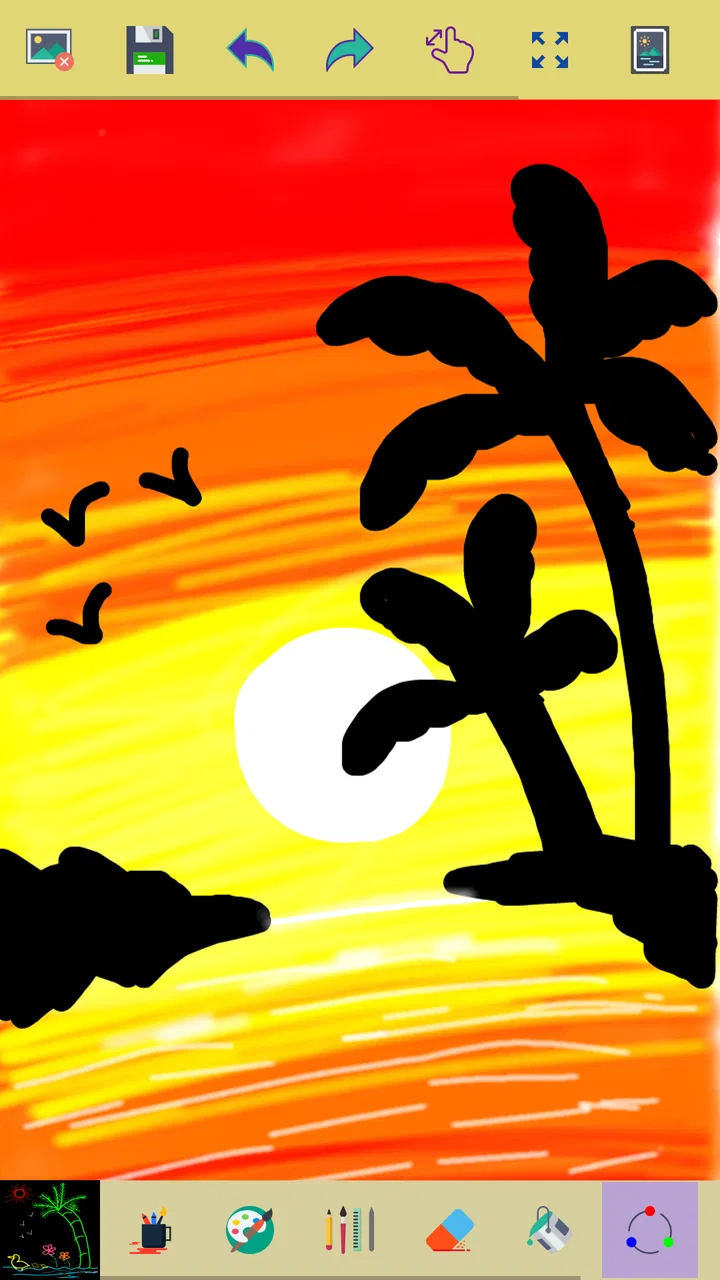
I like drawing apps that understand their place. Not every sketch needs layers, brushes, export menus, or a tutorial before the first mark appears. Paint from ng-labs takes the opposite route: it is a small, straightforward art app for making quick drawings with colors, zoom, and a limited undo function. After using it, I see its appeal clearly. It is less like a digital studio and more like a clean electronic notepad for visual ideas.
That simplicity is also the main question behind the app. If you want to doodle, annotate an idea by hand, or let a child experiment with color, it can be pleasantly direct. If you expect the controls of a full illustration tool, you will probably reach its limits quickly. My experience is that its value comes from removing decisions rather than adding creative power.
What Paint is and what you can expect
Paint belongs to the Art & Design category and is developed by ng-labs. It is free to use, carries an Everyone age rating, and supports devices running Android 6.0 or later. The current version is 3.6.2, while the app was released on January 1, 2018. Those details make its position fairly clear: this is an accessible Android drawing utility rather than a specialist illustration package.
You May Also Like

 Blood Strike: 2.5 Anniversary
Blood Strike’s Loadouts Turn Every Drop Into a Tactical Gamble
A close look at Blood Strike’s custom loadouts: how fast access to signature weapons reshapes its battle royale rhythm, rewards preparation, and narrows the gap between fights.

 Pandora - Music & Podcasts
Pandora’s Music Is Easy to Start, but Harder to Recover
Pandora’s strength is its low-effort path from a seed to a station. Its weak spot is how much confidence it asks you to place in connection, setup, and quiet recovery.

 8 Ball Pool
 Is Built on Rivalries, Rematches, and Routine
A close look at the rivalries, rematches, shared routines, and unanswered safety questions that turn a quick pool match into a persistent mobile community.

 Samsung Music
’s Quiet Strength Is Playing What You Already Own
Its reach comes less from spectacle than from dependable access to a personal library. That simplicity is both the app’s strongest retention engine and its ceiling.

 AccuWeather: Weather Radar
AccuWeather Review: A Quick, Clear Forecast for Everyday Decisions
For everyday plans, the best forecast is the one you can understand quickly. AccuWeather makes rain timing, radar, and local conditions easy to act on, with a few trade-offs.

 Hill Climb Racing
Why Hill Climb Racing Still Turns Crashes Into One More Run
A tiny car, a bumpy hill and one more upgrade: Hill Climb Racing keeps resurfacing because its simple chaos makes every near-miss feel personal.
More From Our News Desk



The app has built a substantial audience, with over five million installs and an average rating of 4.1 from around eighteen thousand ratings. I would not treat those figures as proof that it suits every artist, but they do suggest that the uncomplicated approach works for many casual users. The short store label is simply “Paint,” and that plain naming matches the experience: open it, choose a color, and start making marks.
The basic toolset centers on drawing with multiple colors, enlarging the canvas through zoom, and undoing a few recent strokes. That last point matters. Undo is useful for correcting a misplaced line, but it should not be confused with the deep editing history found in more advanced creative apps. I found myself drawing with a little more care because the safety net is intentionally small.
A quick workflow that feels natural
For a simple sketch, the process is refreshingly short. I can begin with a rough outline, zoom in when two lines need to meet more accurately, switch colors for emphasis, and undo a recent mistake without searching through a crowded toolbar. This makes the app suitable for moments when the idea matters more than the final polish.
Zoom is especially useful on a phone. A small screen can make a corner or narrow gap awkward to handle at normal size, so enlarging the drawing gives the finger more room to work. I would use that feature for lettering, small symbols, or cleaning up the edge of a basic shape. It does not turn the phone into a professional tablet, but it makes casual precision less frustrating.
One practical habit is to plan the drawing in broad stages. I start with the main outline, add larger color areas, and leave tiny corrections until the end. Because only a few strokes can be undone, this order reduces the chance of losing useful work while experimenting. It is a small change, but it makes the limited history feel less restrictive.
Where the free price matters
Paint is free, so the decision is not about comparing subscription tiers or calculating whether a premium brush collection is worth buying. The value question is simpler: does a no-cost, lightweight drawing space solve the task you have today? For quick sketches, the answer can be yes. You get immediate access to the core activity without paying for features you may never use.
That does not mean free access makes every limitation irrelevant. Time has value too. Someone who repeatedly needs advanced editing may spend more time working around a basic tool than they would spend learning a richer alternative. I would therefore judge the app by the frequency and seriousness of the drawing work, not just by the fact that the download costs nothing.
For a child who wants to draw, a family member who needs a simple creative distraction, or an adult who occasionally sketches a visual reminder, free access is a genuine advantage. There is no need to commit money before discovering whether the interface feels comfortable. It is also a sensible option for a spare device where a large creative suite would be unnecessary.
Small use cases where it earns its place
Imagine I am planning a room arrangement and want to sketch a rectangle for a table, a few lines for chairs, and arrows showing movement. I do not need realistic textures or a polished presentation. I need a blank space, a few colors, and the ability to correct a line that went in the wrong direction. Paint fits that moment better than an elaborate illustration app because it keeps the task focused.
Another useful scenario is a quick visual explanation during a conversation. I might draw a simple route, mark where two objects should go, or create a rough diagram before explaining it to someone else. The result does not need to look professional; it only needs to make an idea easier to understand. In that setting, the app’s minimalism becomes a strength rather than a missing feature.
I also see value for practicing hand control. Drawing basic shapes, repeating patterns, or trying different color combinations can be a low-pressure way to become more comfortable with a touchscreen. The app is not a structured art course, so the practice has to come from the user, but its uncluttered workspace does not distract from the exercise.
For children, the Everyone rating and simple controls make the app approachable. I would still introduce it with a small activity rather than expecting endless entertainment from the tool alone: draw a house using three colors, make a picture from circles and lines, or recreate a familiar object. The limited undo can even encourage deliberate choices, although younger users may find it frustrating when a large mistake cannot be easily reversed.
The tradeoff between simplicity and control
The biggest limitation is the narrow editing cushion. A few undos are enough for minor corrections, but not for exploring many alternatives in one drawing. If I want to test a new color, erase a section, and then return to an earlier version, I need to think ahead. This is manageable for small images and much less comfortable for a detailed piece.
That limitation changes how I use the app. I avoid making a long sequence of risky changes without pausing. When a section looks right, I treat it as settled and move on. This is not the relaxed, endlessly reversible workflow offered by many modern art tools. It is closer to drawing on paper, where every mark deserves at least a little attention.
The same tradeoff applies to creative depth. Paint is a poor match for anyone who depends on a large brush library, layers, complex selections, sophisticated color controls, or a carefully managed production workflow. I would choose a dedicated illustration app for character art, finished posters, detailed digital painting, or work that needs repeated revisions. Those tools take longer to learn, but they repay that effort when control matters.
It can also be the wrong choice for professional communication. A rough diagram may be perfectly adequate for a private note, yet a client presentation or published graphic usually needs cleaner typography, alignment, and editing options. Paint can help form the first idea, but I would not automatically use it as the final destination for work that represents a business or public project.
How it compares with usual alternatives
Compared with a full mobile art suite, Paint is easier to approach and harder to grow into. A larger app may offer more tools, but that abundance can slow down a person who only wants to make a quick mark. Paint avoids the initial hunt through panels and settings. In return, it gives up the flexibility needed for complex illustrations.
Compared with drawing directly on paper, it is more forgiving in a few important ways. I can change colors without carrying pens or pencils, enlarge a small area, and correct recent strokes. Paper still wins for tactile feedback, effortless page space, and the freedom to keep every previous mark visible. Paint sits between the two: more adjustable than a simple sheet, but far less elaborate than a digital studio.
Compared with a note-taking app, it is more naturally focused on freehand marks. A note app may be better when handwriting, typed text, lists, and documents need to live together. Paint makes more sense when the visual mark itself is the point. I would not install it to manage written notes, but I would open it when a quick picture explains something faster than a paragraph.
The best alternative depends on the cost of being limited. If I am making one rough sketch during a short break, Paint’s free access and direct workflow are valuable. If I am building something that will be edited repeatedly, choosing a more capable app from the beginning is more efficient, even if that alternative has a steeper learning curve or a different pricing model.
Tips for getting more from a small canvas
My first tip is to use zoom for accuracy, not just for looking closely. I can enlarge a problem area, make a controlled correction, and then return to the wider view to check whether the change still fits the whole drawing. This avoids the common mistake of fixing a tiny detail so aggressively that it looks out of place when viewed normally.
My second tip is to reserve the undo function for meaningful errors. If I use it for every slightly uneven line, I may quickly lose the ability to recover from a larger mistake. For loose sketches, accepting a little imperfection often produces a faster and more natural result. For a small icon or lettering, I would slow down and place the main strokes carefully before adding decoration.
My third tip is to treat color changes as visual organization. Instead of switching colors randomly, I use one for the outline, another for the main subject, and a third for emphasis or direction. Even a basic drawing becomes easier to read when the colors have jobs. This is particularly useful for diagrams, where color can separate objects from instructions without requiring extra text.
A fourth useful approach is to make a tiny practice drawing before starting the real one. I can test how a line feels at normal size, zoom in to see how much control I have, and decide whether the chosen colors are easy to distinguish. That short warm-up reduces wasted strokes and helps me adapt to the limited undo history.
Who will get the most value
I recommend Paint to casual doodlers, beginners, parents looking for a simple drawing activity, and anyone who wants a visual scratchpad on an Android phone. It is also a good fit for people who find feature-heavy art apps intimidating. The free price makes trying it low-risk, and the Everyone rating keeps it broadly approachable.
I would be more cautious about recommending it to experienced digital artists. If your normal workflow includes layers, detailed revision, complex coloring, or finished export-ready artwork, this app is likely to feel restrictive rather than liberating. You may still enjoy it for a quick warm-up, but it should not replace a tool built around serious illustration control.
It is similarly unsuitable when the drawing must be highly polished or repeatedly revised. A classroom sketch, personal reminder, or rough plan can tolerate a little unevenness. A logo, commissioned drawing, or presentation graphic usually cannot. In those cases, a more specialized alternative is the better investment of time, regardless of whether Paint itself is free.
My verdict after using it
Paint delivers honest value as a free, uncomplicated drawing app. Its strongest quality is not artistic power; it is the short distance between opening the app and putting an idea on screen. Multiple colors, zoom, and a small undo facility cover the essentials for casual work, while the lack of a crowded interface keeps the experience approachable.
The decision becomes easy if your needs are modest. Choose it when you want a quick doodle, a basic diagram, a child-friendly creative space, or a temporary visual notebook. The no-cost access means you can test that workflow without a purchase decision, and the app’s broad compatibility makes it practical for many older Android devices.
Skip it when your drawings are projects rather than moments. If you need extensive revision, deep brush control, or a professional finishing process, a more advanced art application will serve you better. Paint is not trying to compete with those tools, and expecting it to do so would miss the point.
My final recommendation is therefore conditional but positive: install it if you value speed and simplicity more than a long feature list. I would keep it as a handy sketching companion, not as my main digital art studio. For the right everyday task, that modest role is exactly why it works.
FAQs for Paint
01What platforms is Paint available on?
Paint is available for both Android and iOS platforms, making it accessible to a wide range of users. Whether you're using a smartphone or a tablet, you can download Paint from the Google Play Store for Android devices or the Apple App Store for iOS devices.
02Does Paint support layers for advanced editing?
Yes, Paint supports layers, which is essential for users who want to perform advanced image editing. This feature allows you to work on different elements of your artwork separately, providing greater control and flexibility in your creative process.
03Can I use Paint offline?
Paint offers offline functionality, enabling you to work on your projects without an internet connection. This is particularly useful for users who may not always have access to Wi-Fi or mobile data but still want to continue their creative work seamlessly.
04Is Paint suitable for beginners and professionals alike?
Absolutely, Paint is designed to cater to both beginners and professionals. It features an intuitive interface that's easy for beginners to navigate, while also offering advanced tools and features that professionals can utilize to create detailed and complex artwork.
05Are there any in-app purchases or subscriptions in Paint?
Paint includes some in-app purchases and subscription options, which provide access to additional features and tools. While the basic version is free, these purchases can enhance the app’s functionality, making it more robust for those who need advanced editing capabilities.
Pros
- User-friendly interface for beginners.
- Wide range of brushes and tools.
- Supports multiple file formats.
- Layer functionality enhances creativity.
- Customizable color palette options.
Cons
- Limited advanced editing features.
- No support for 3D modeling.
- Lacks collaborative features.
- Occasional performance lags.
- No cloud storage integration.

Paint
Gallery